A complete transformation from a legacy UIKit app into a modern, immersive SwiftUI experience — built for the next generation of fitness coaching.
The 100 Pushups app has guided thousands of people through an 8-week fitness journey. The core program — 24 structured workouts, rest timers, awards and reminders — stays exactly the same. What changed is everything the user sees and feels.
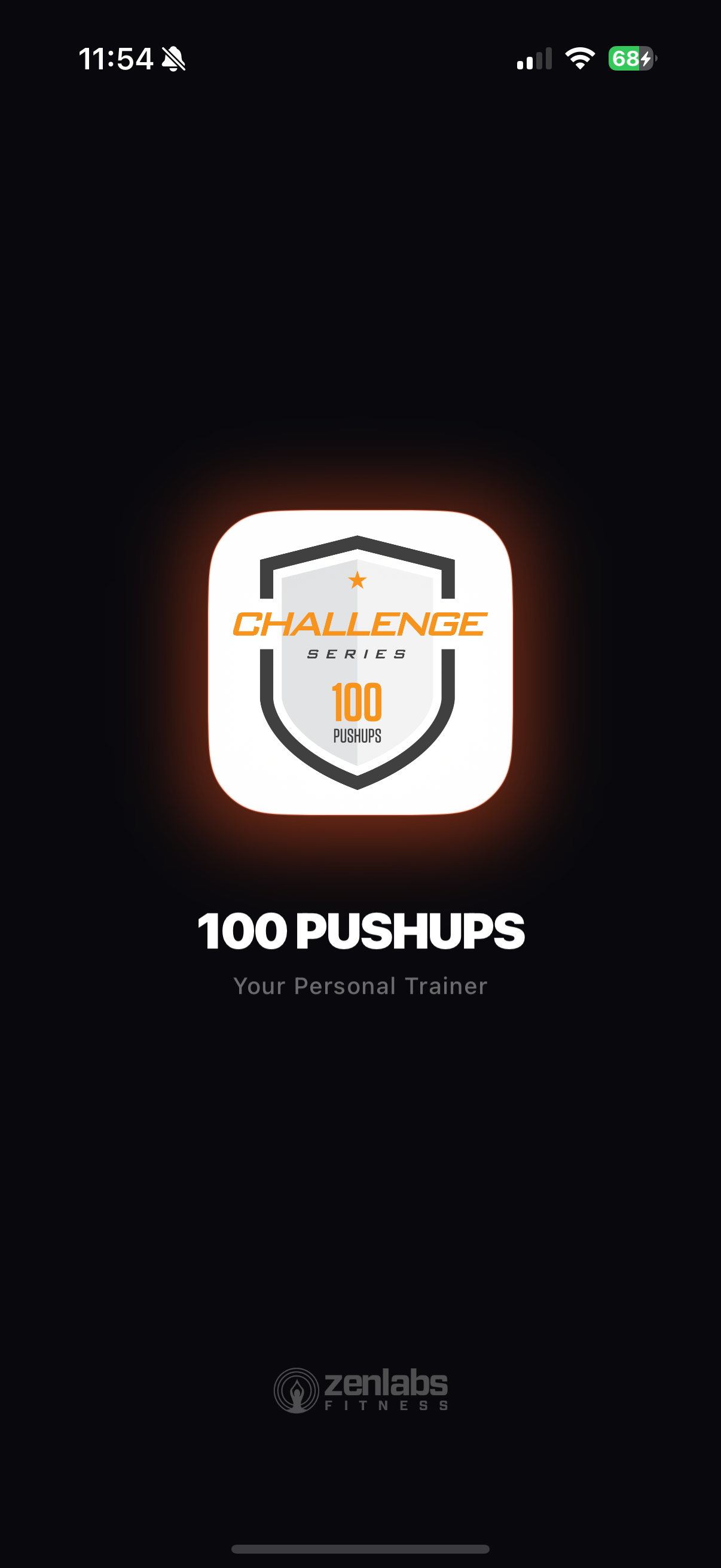
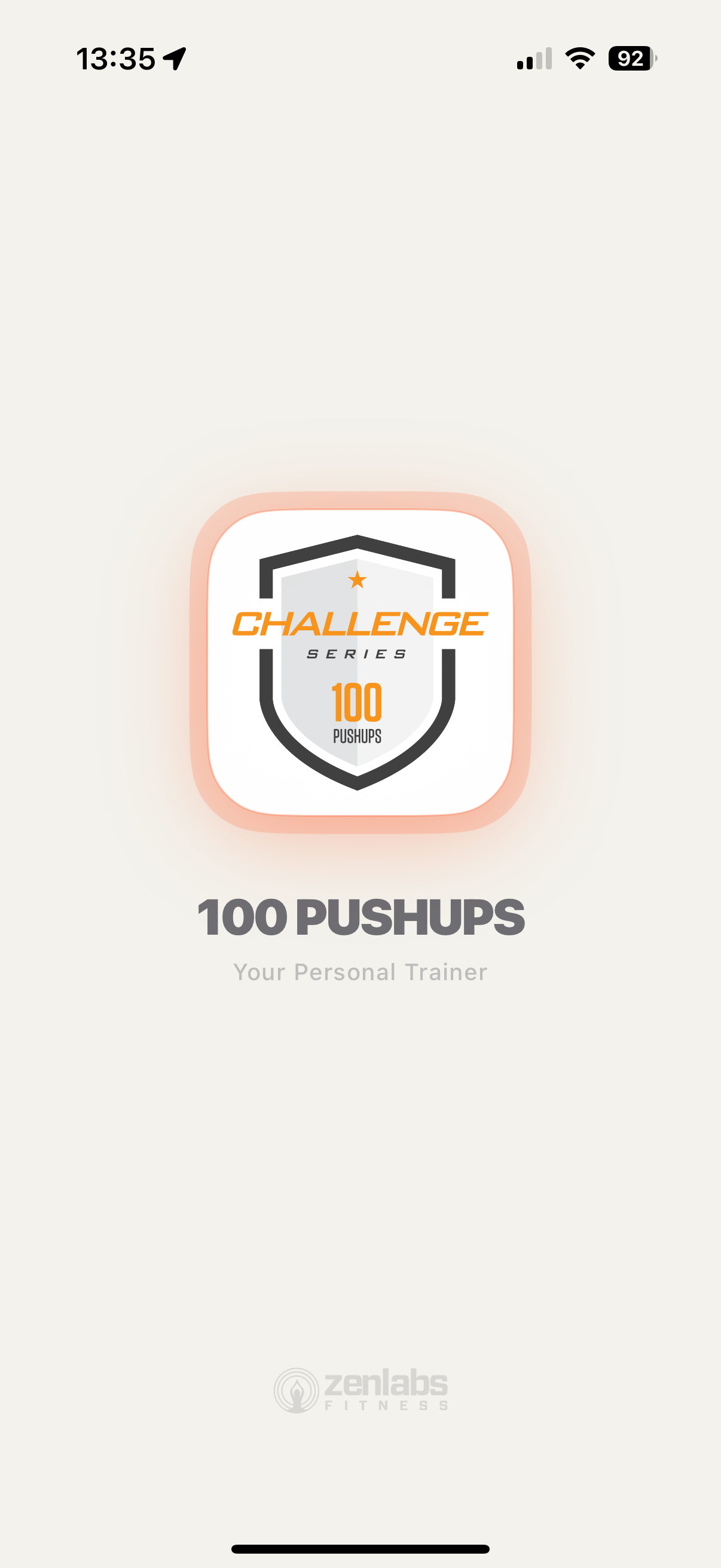
The launch screen sets the tone. The old app used a plain white canvas with a flat logo. The new app opens with a dramatic dark stage, a glowing icon, and a confident "Your Personal Trainer" tagline.
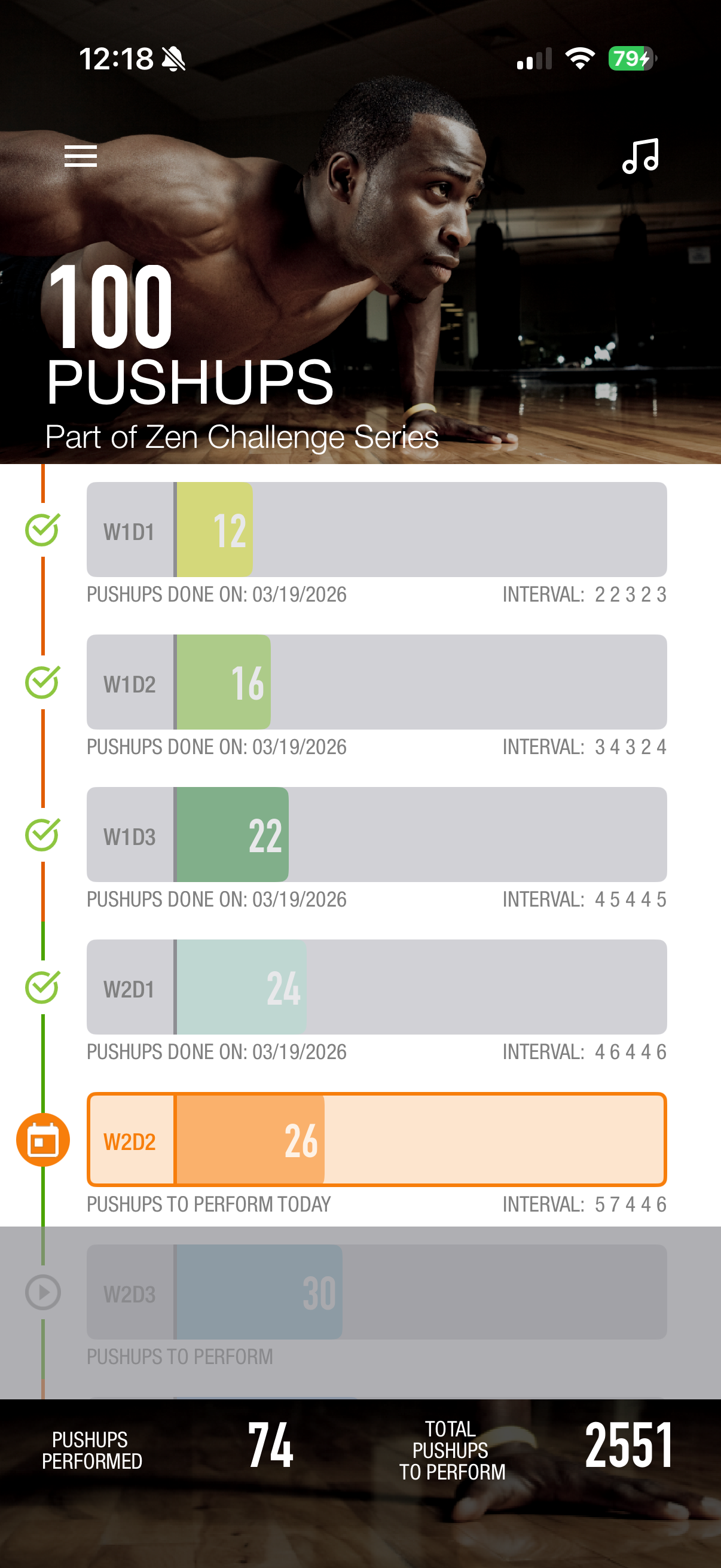
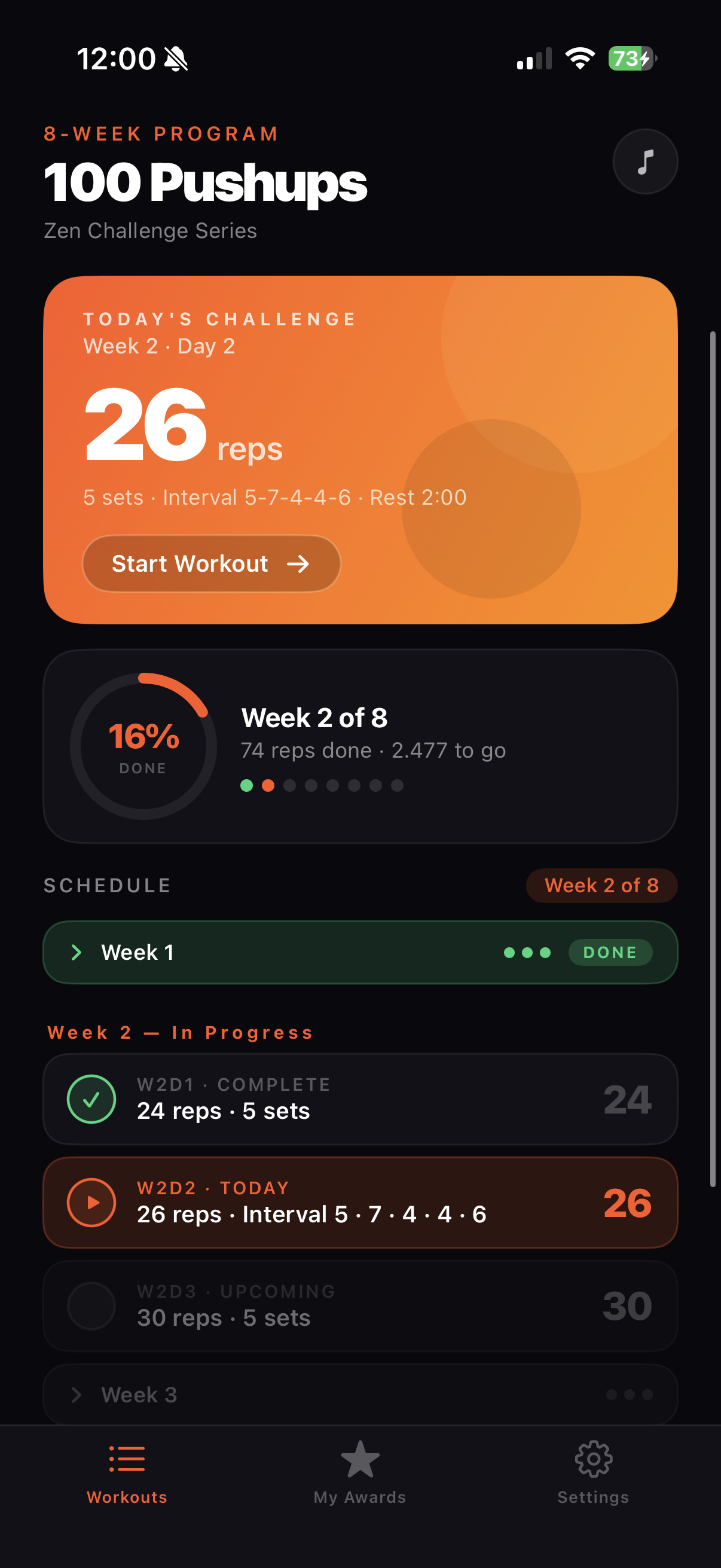
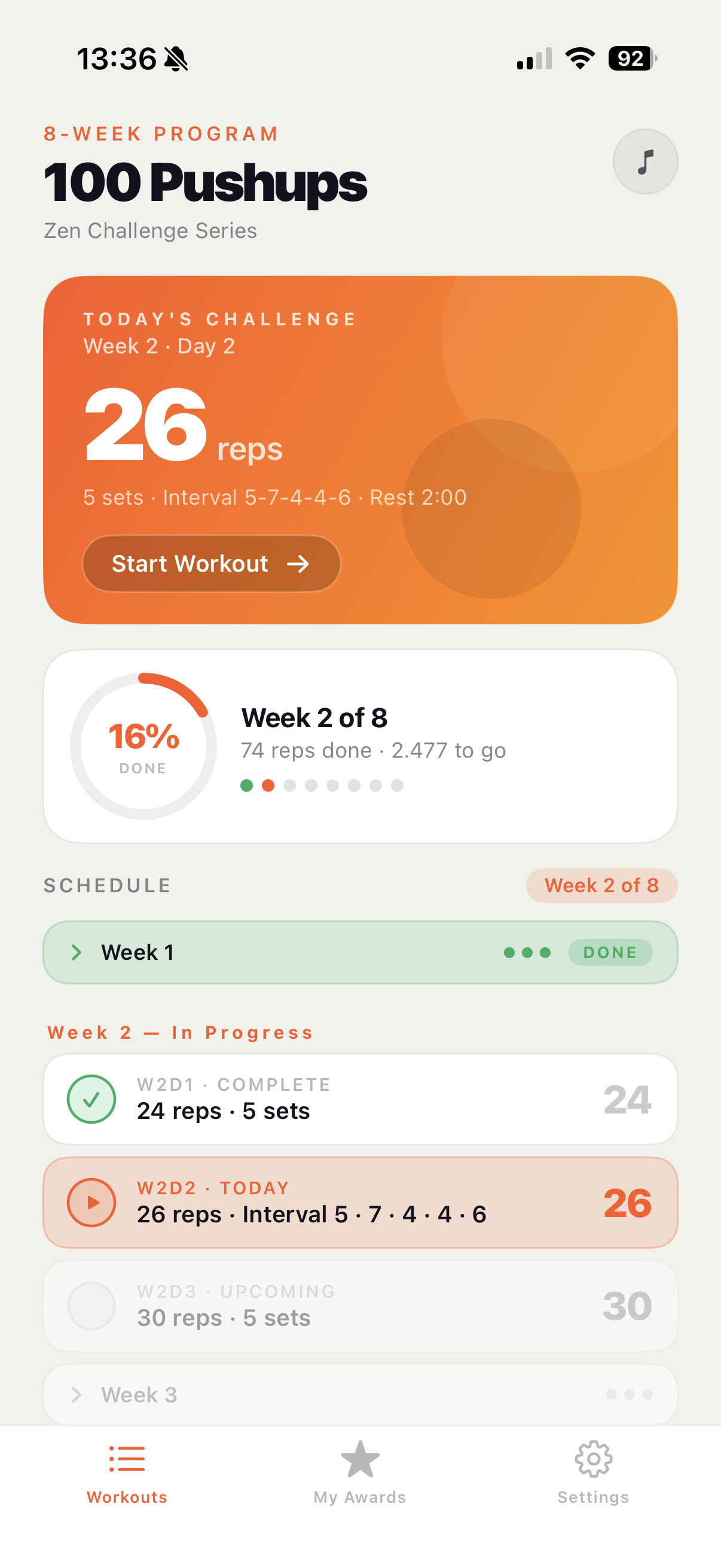
The home screen is where users spend the most time. The old app showed a plain scrollable list of sessions with no sense of urgency or progress. The new app greets the user with their exact challenge for today, their 8-week progress ring, and a clear weekly schedule.
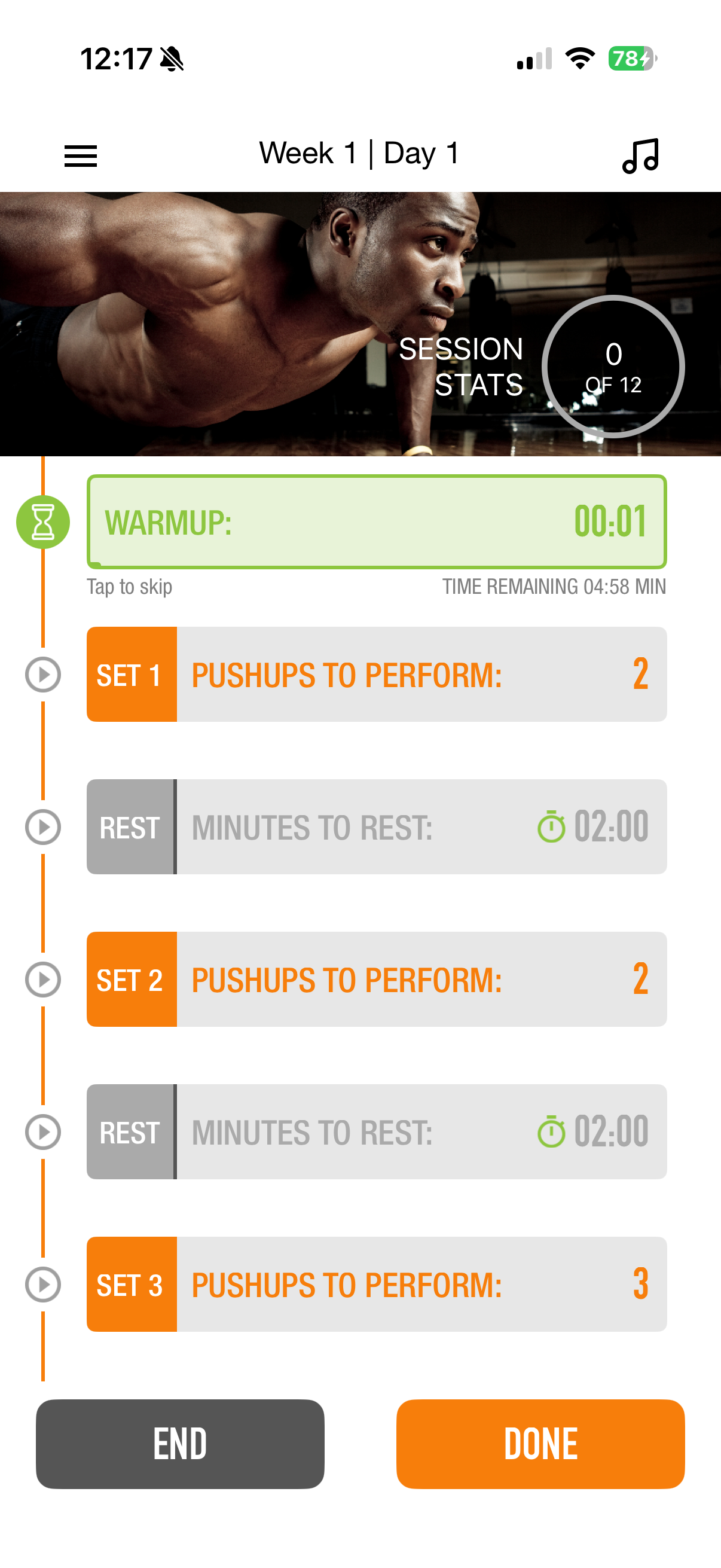
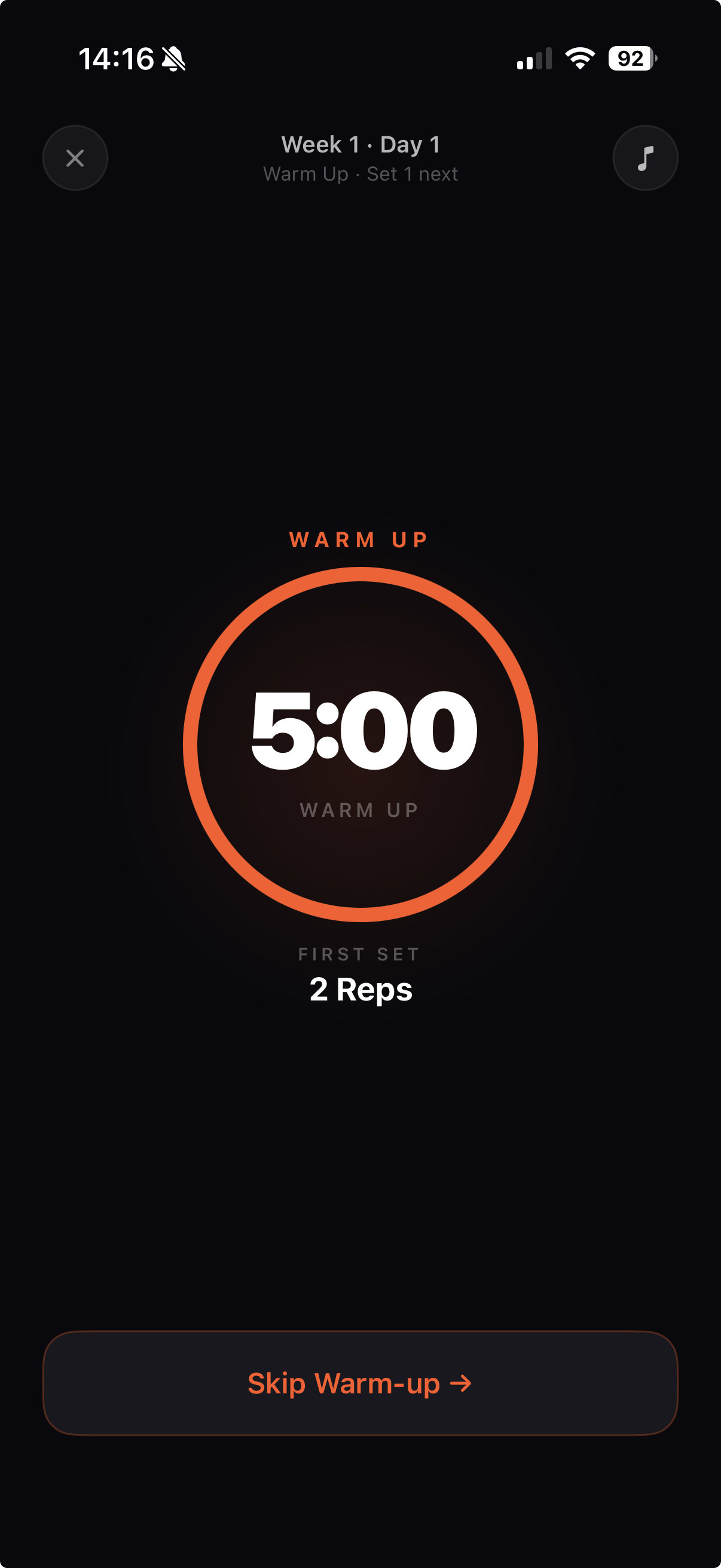
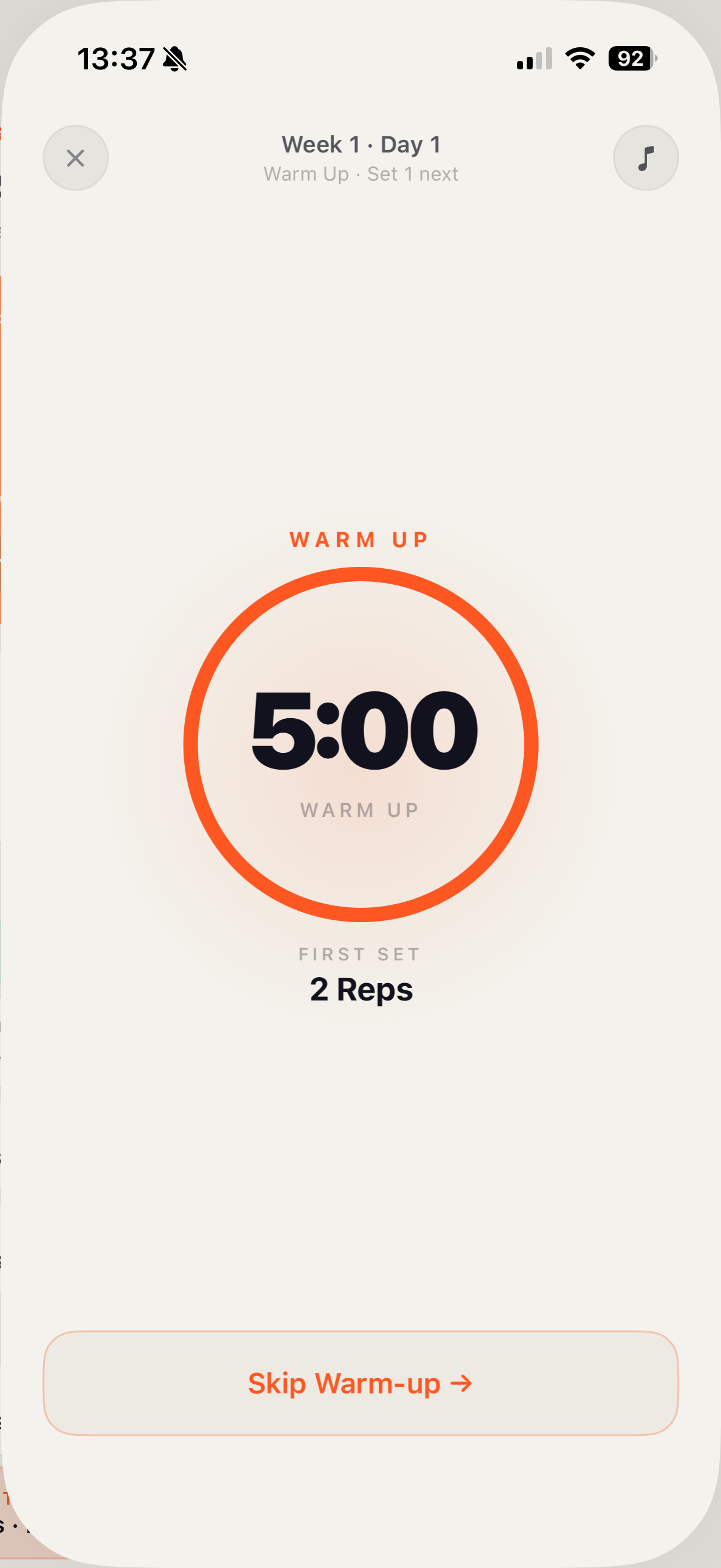
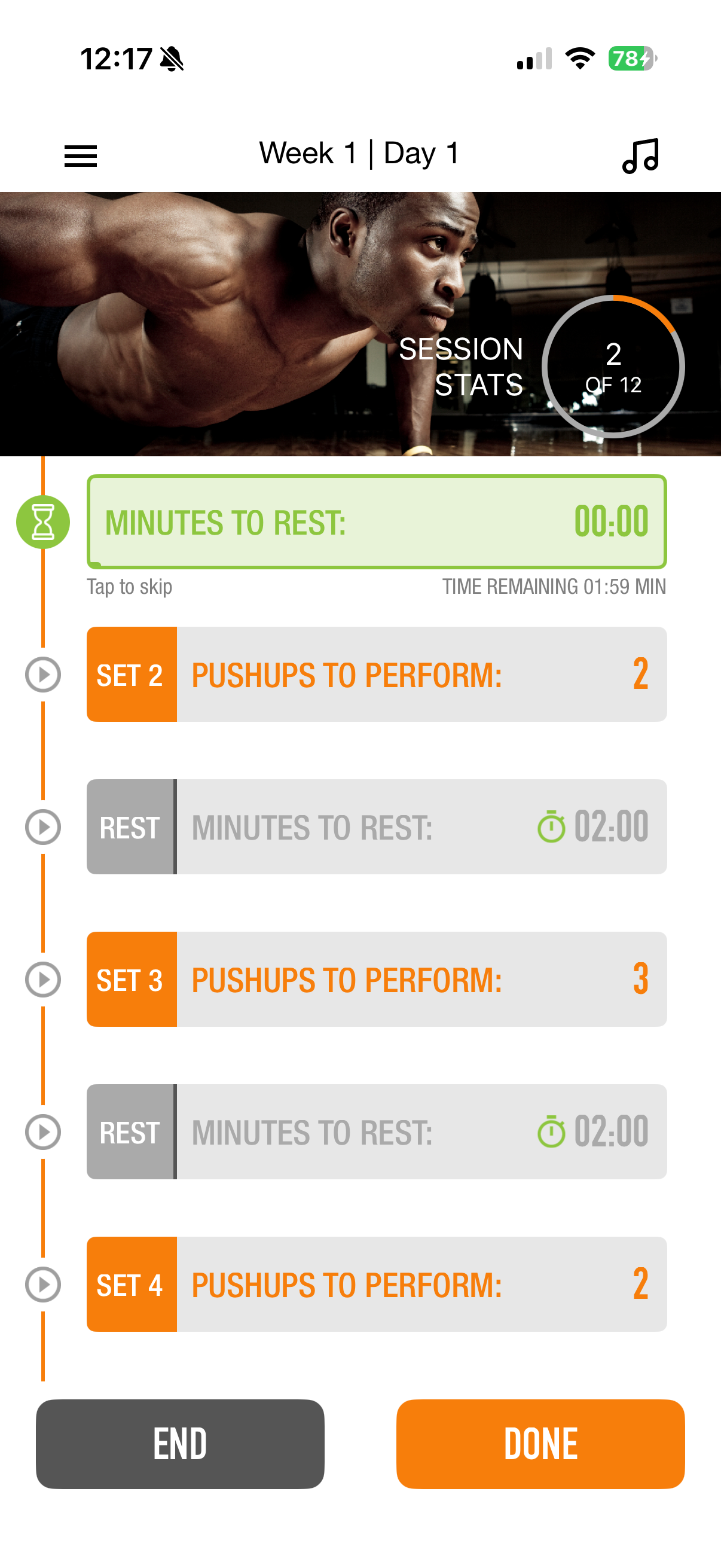
The warm-up timer used to be a tiny green bar squeezed between list rows. Now it gets the full screen — a large circular countdown that pulls the user into workout mode.
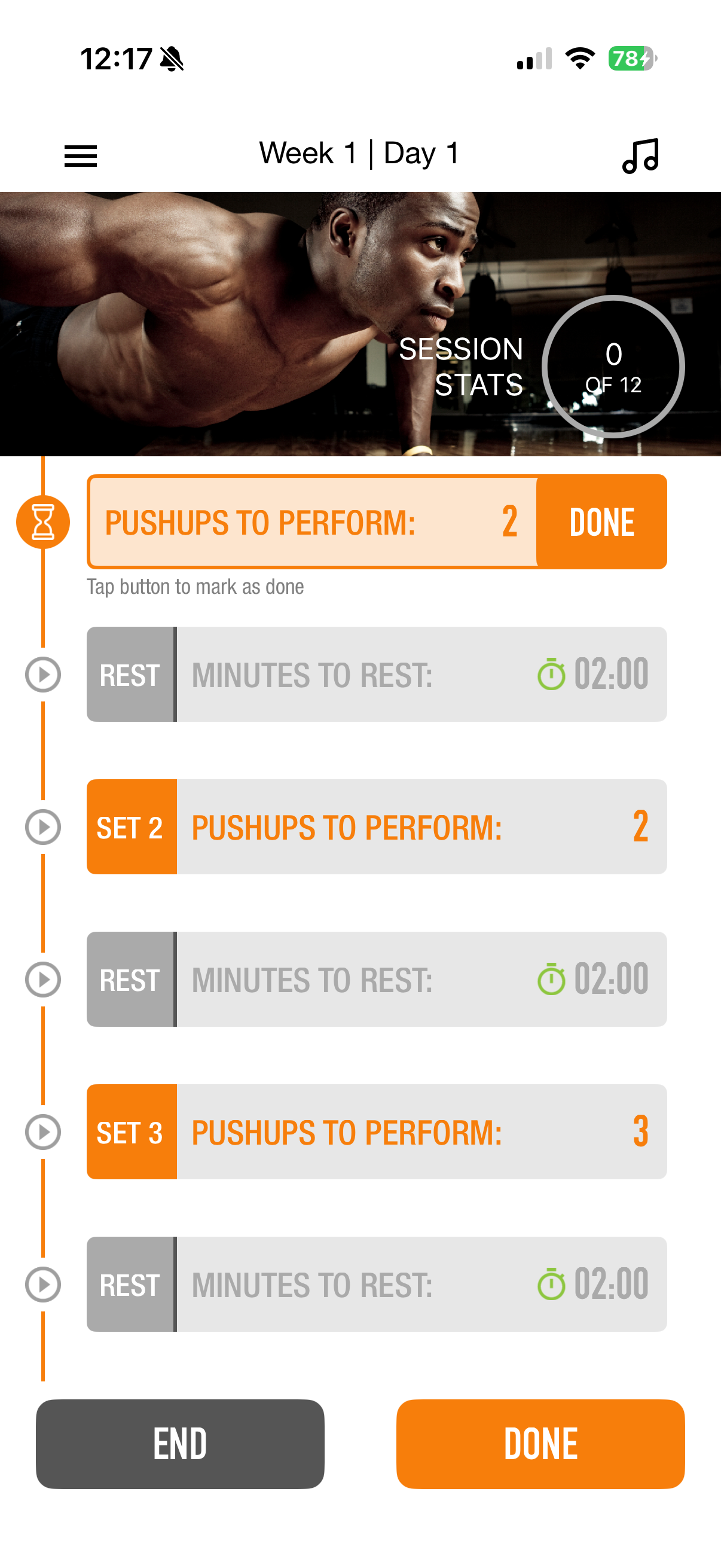
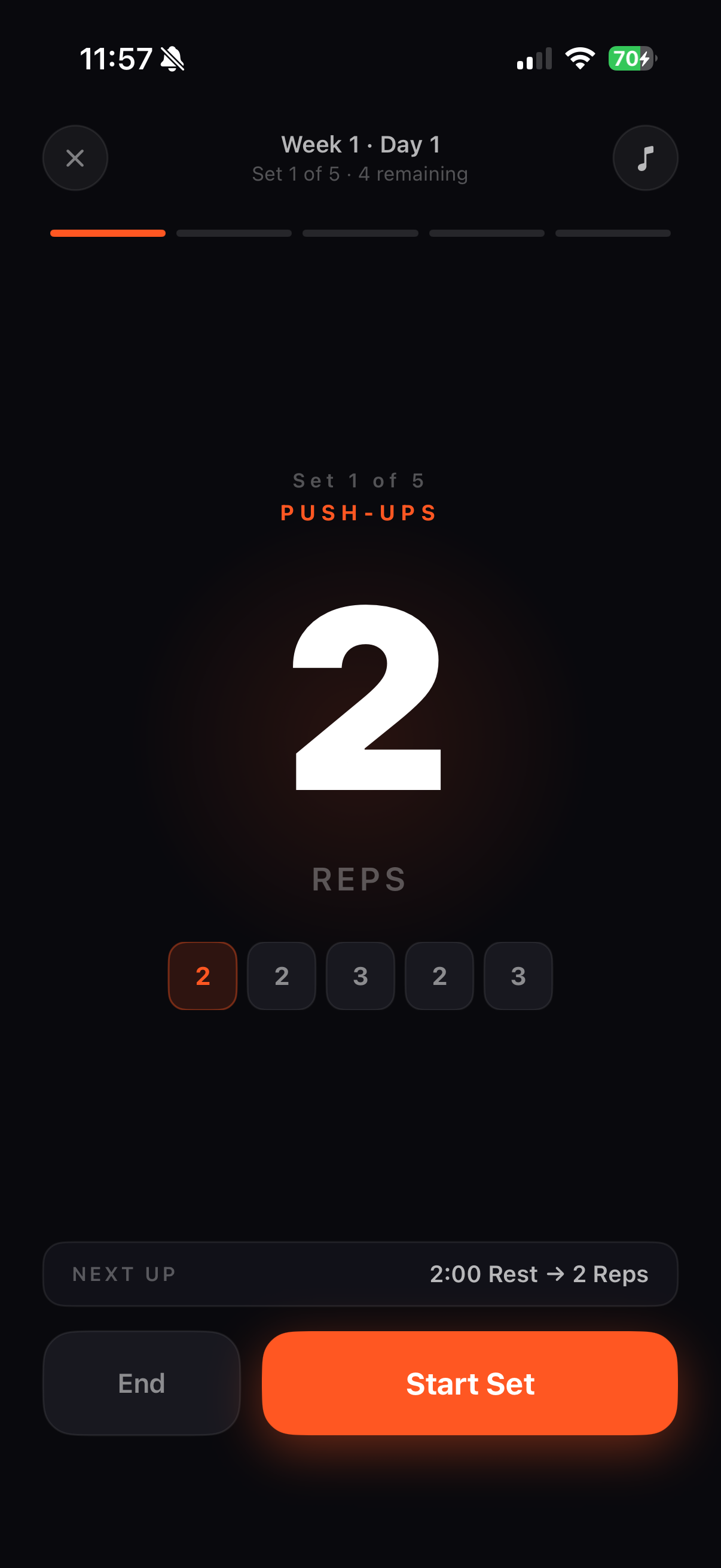
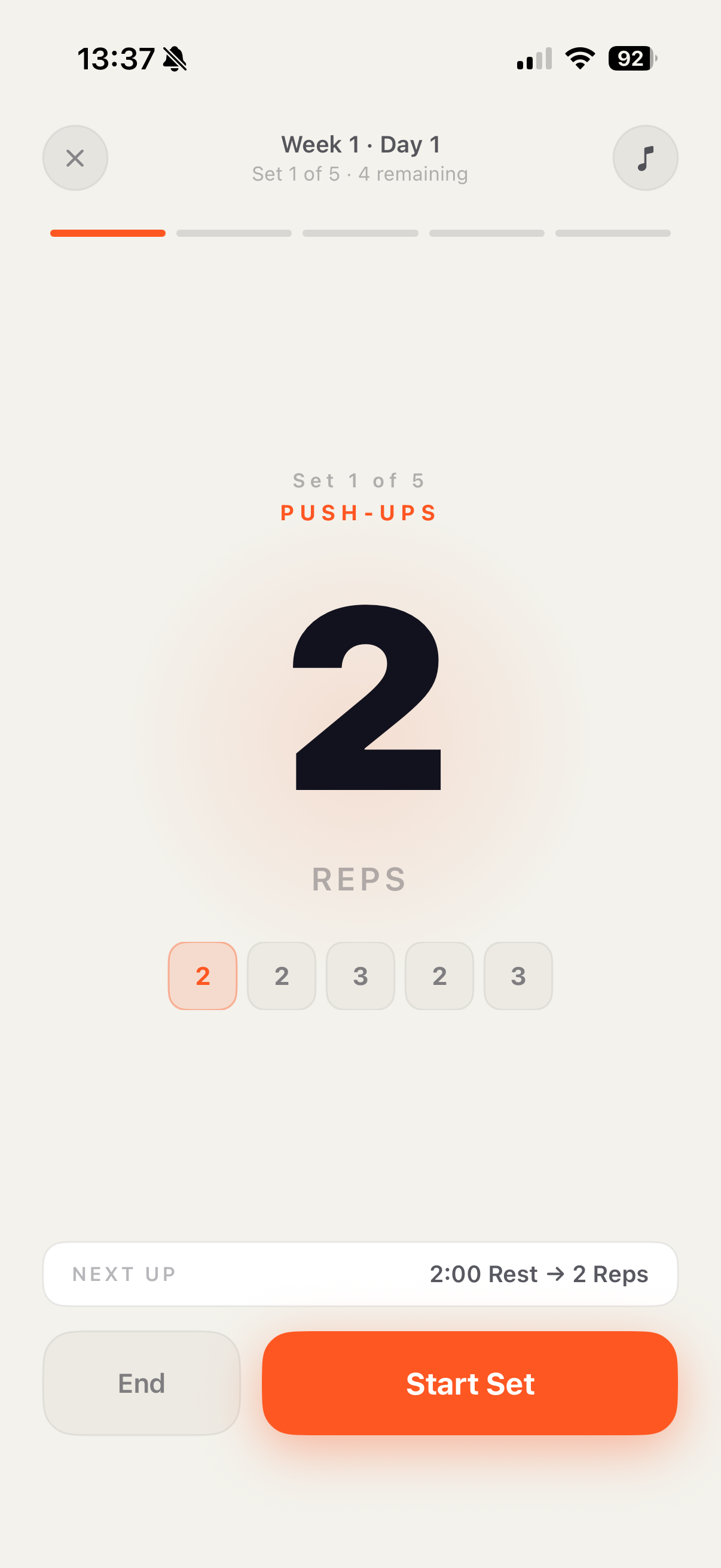
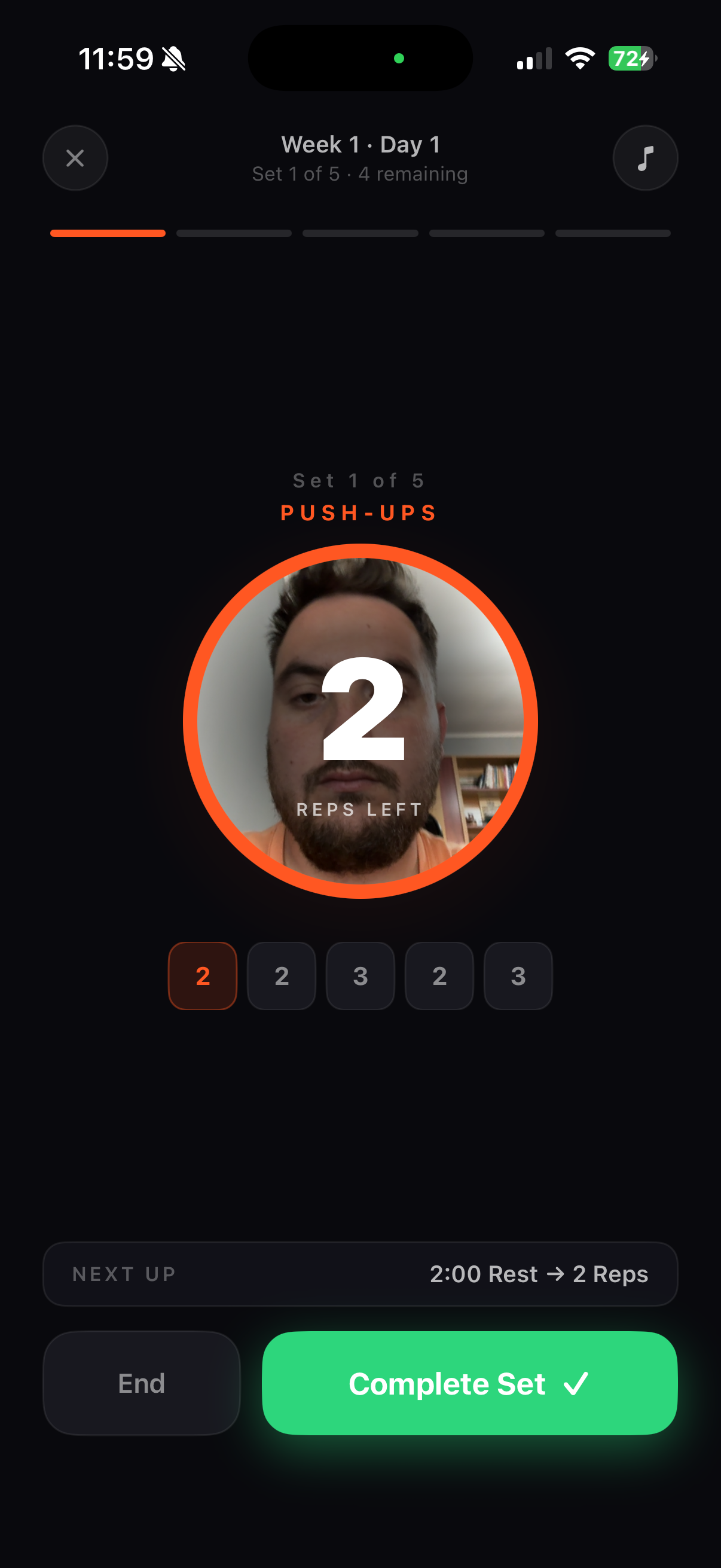
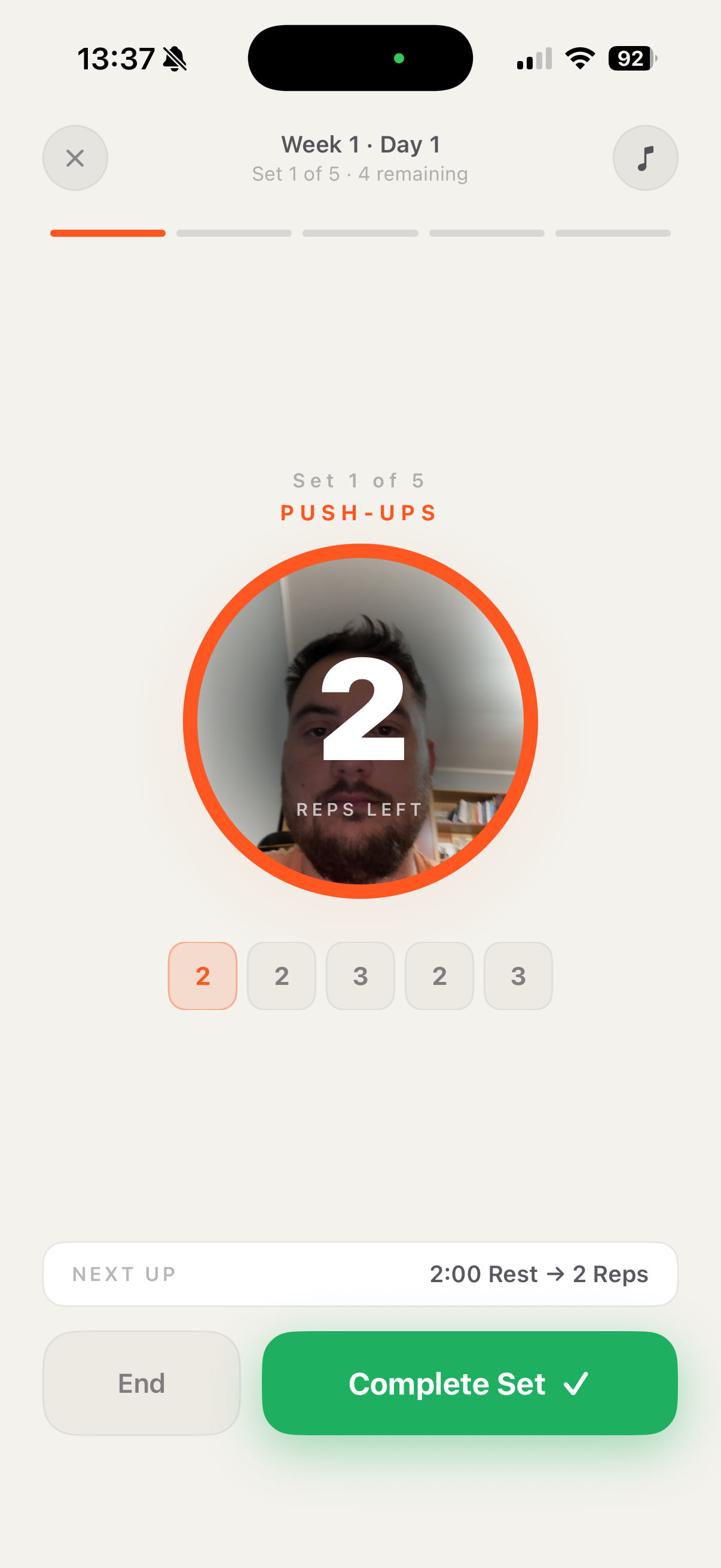
During a set, the user needs one piece of information: how many reps to do. The old app showed a busy list. The new app displays the rep count at display-filling scale — readable from across a room while doing pushups.
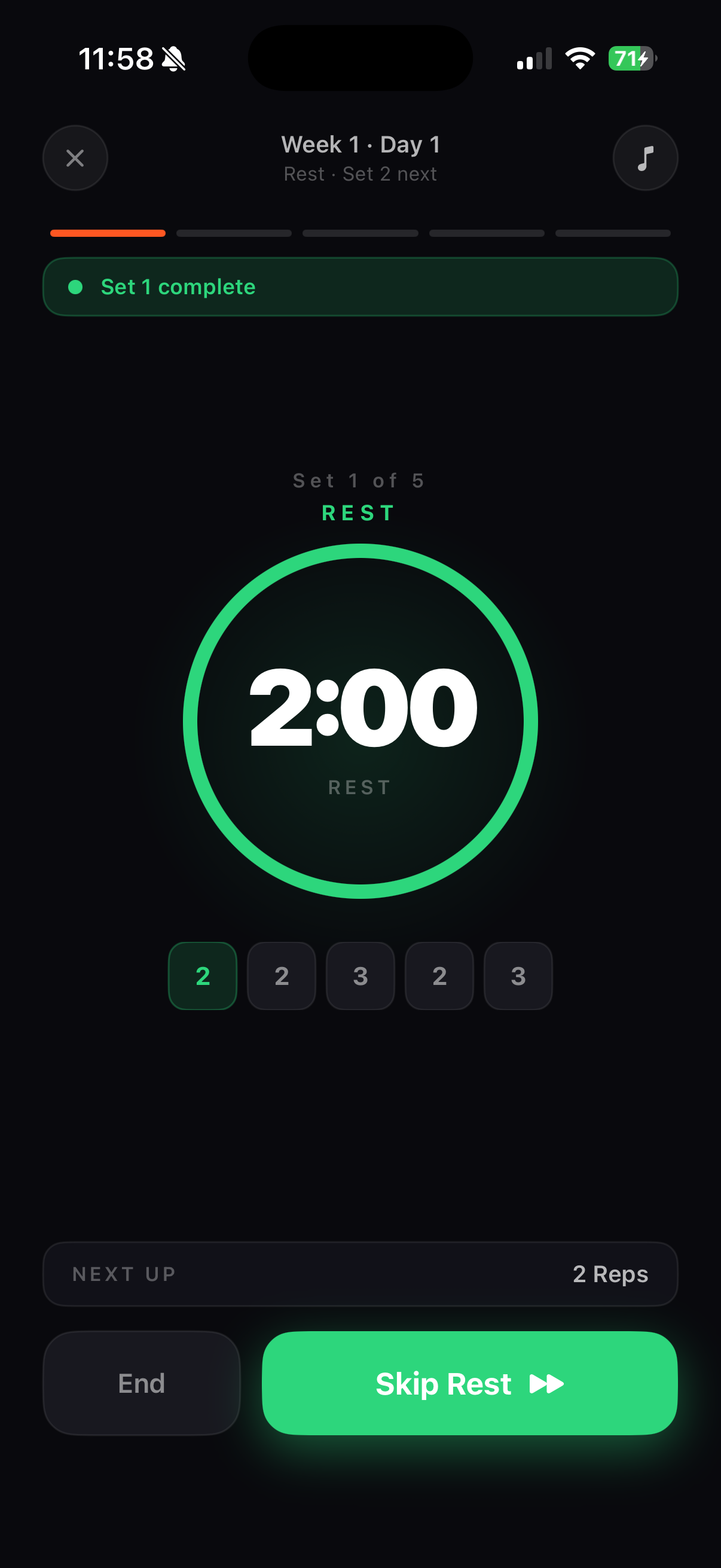
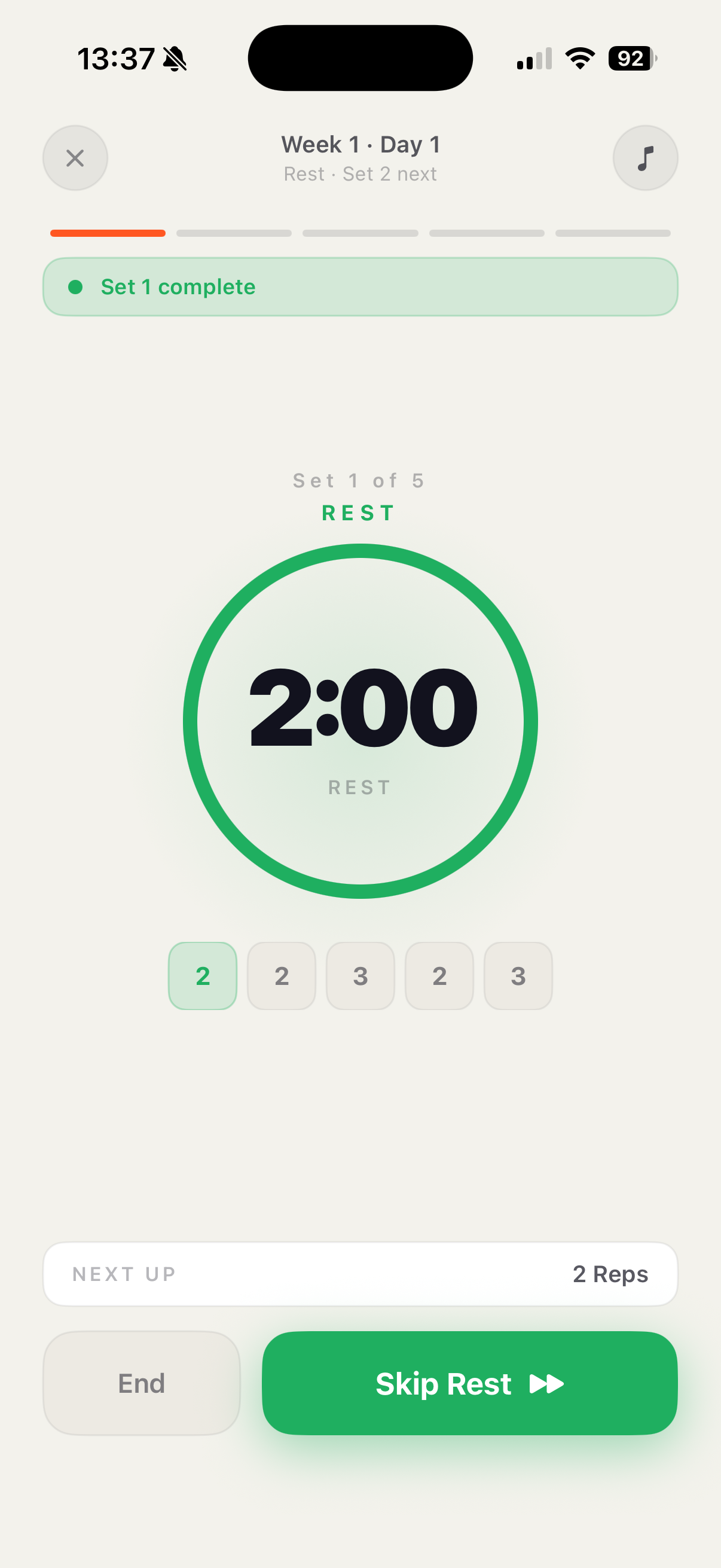
The rest period is as important as the set itself. The new design turns the rest phase into its own dedicated moment — the screen goes green, confirming the set is done and letting the user breathe.
The app now uses the iPhone's front camera and on-device computer vision to count pushups automatically. No tapping required. The user just does the work — the app keeps score.
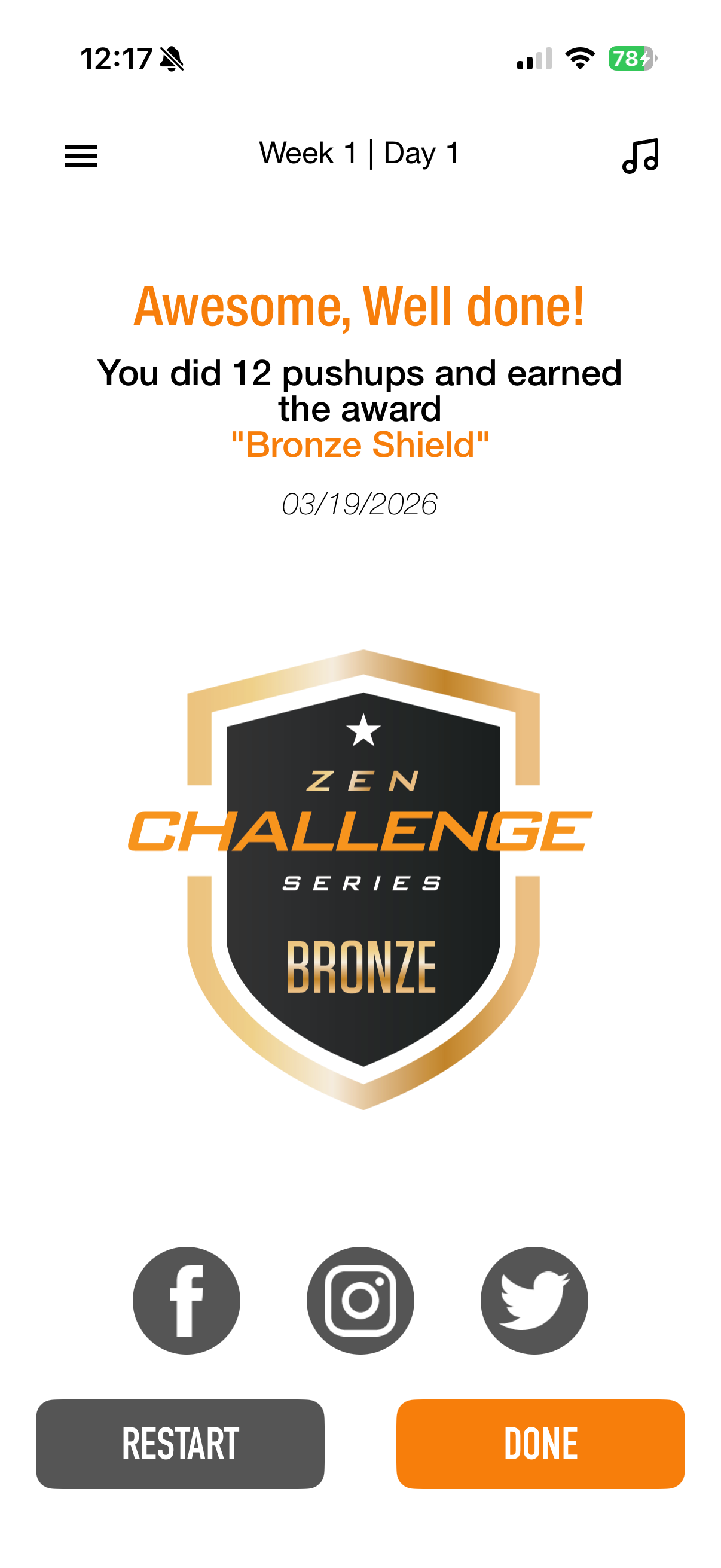
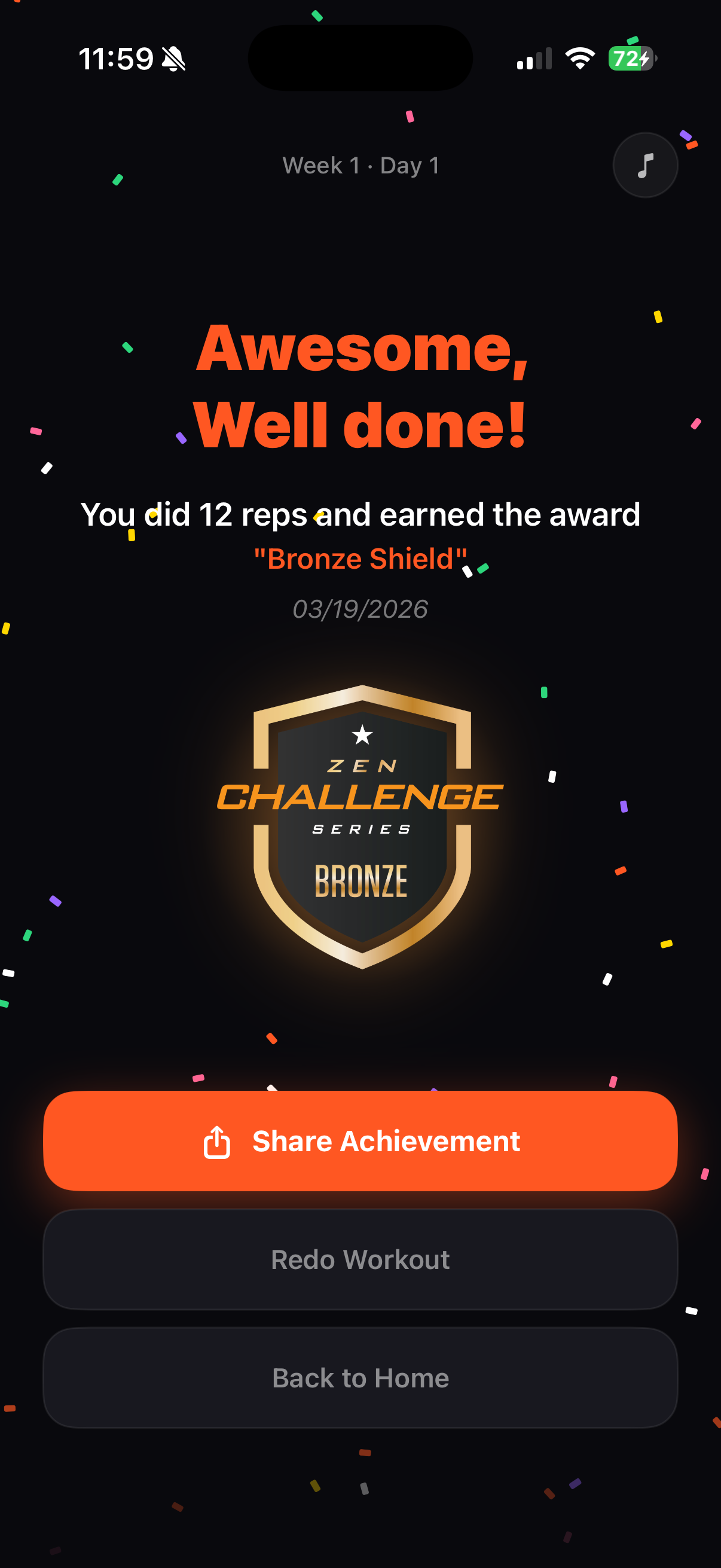
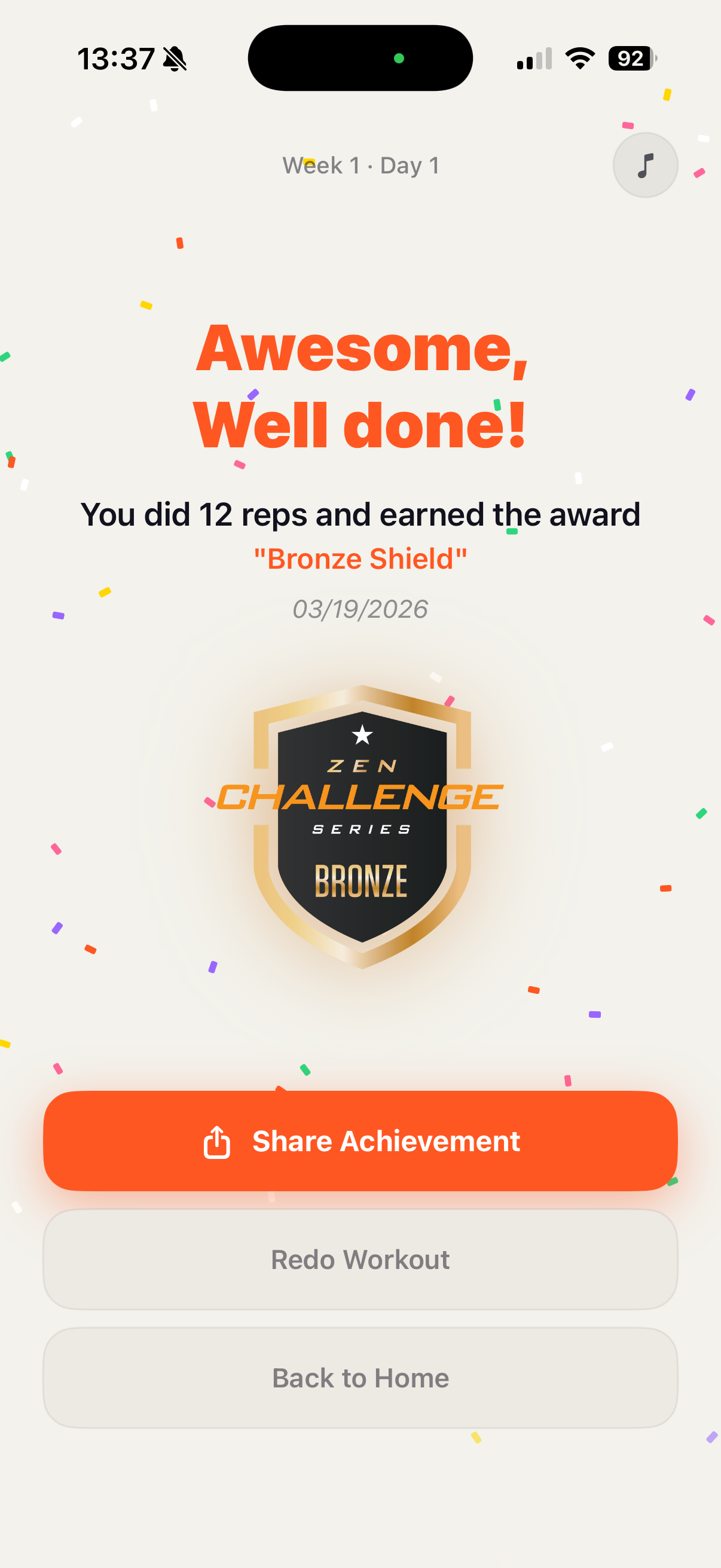
Completing a workout deserves a real celebration. The old app showed plain text on a white background. The new app explodes with confetti and awards the user with their earned badge in a cinematic reveal.
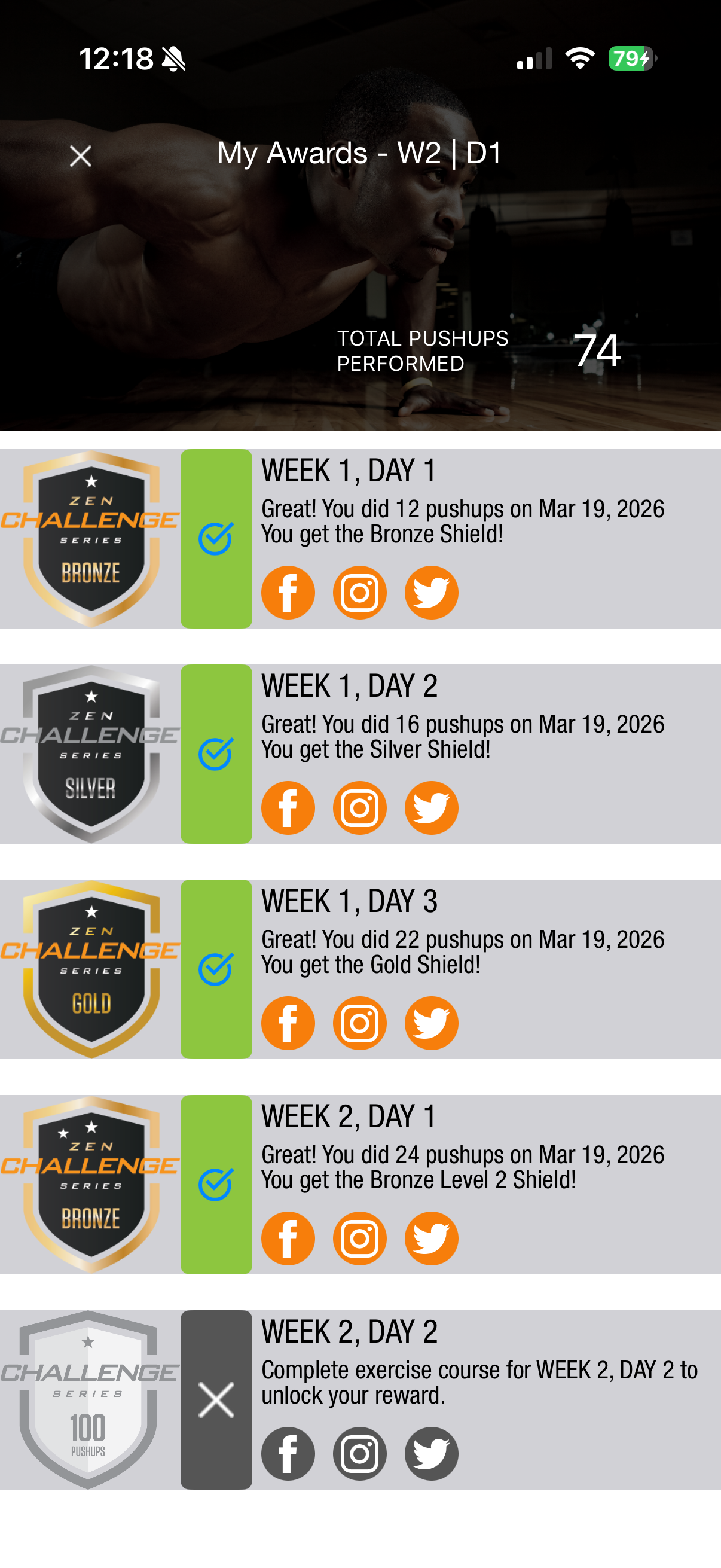
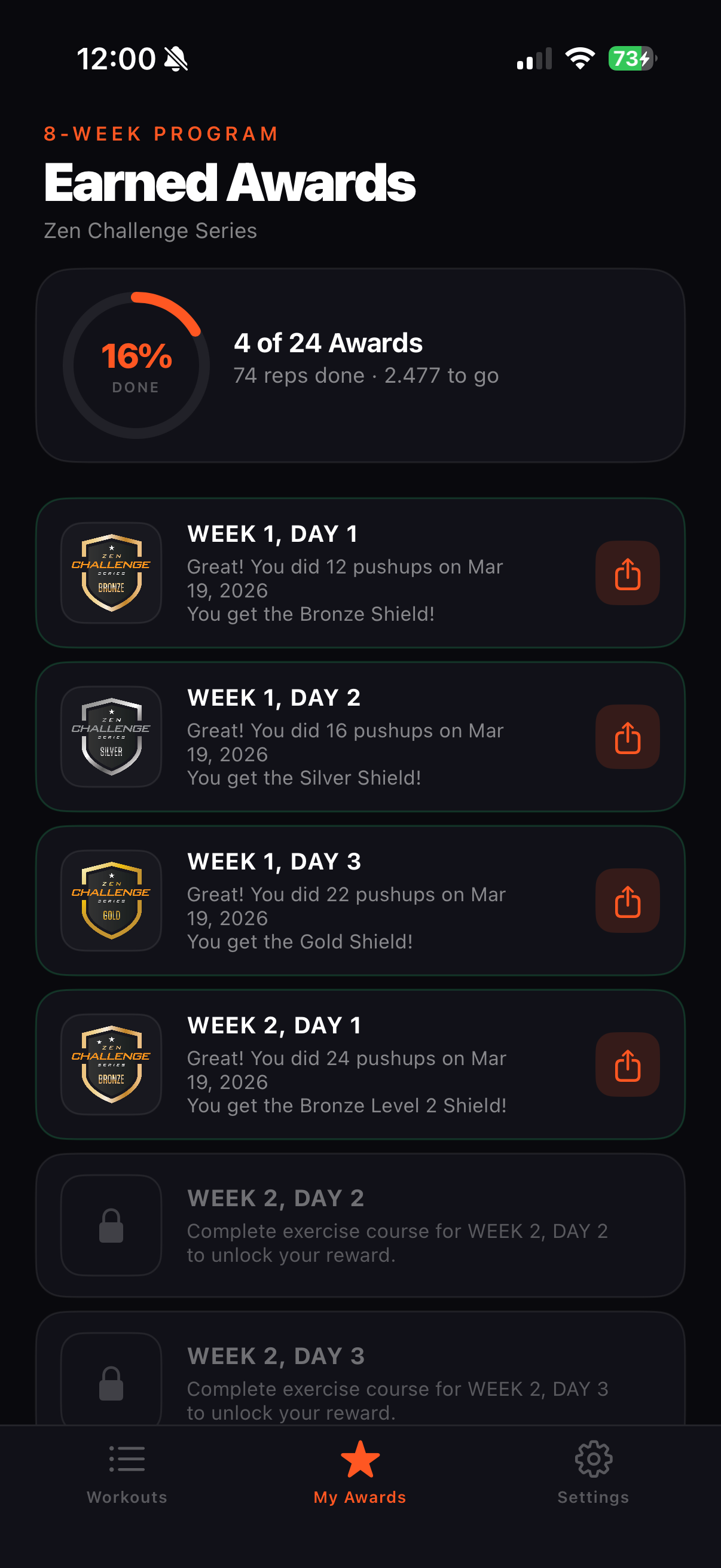
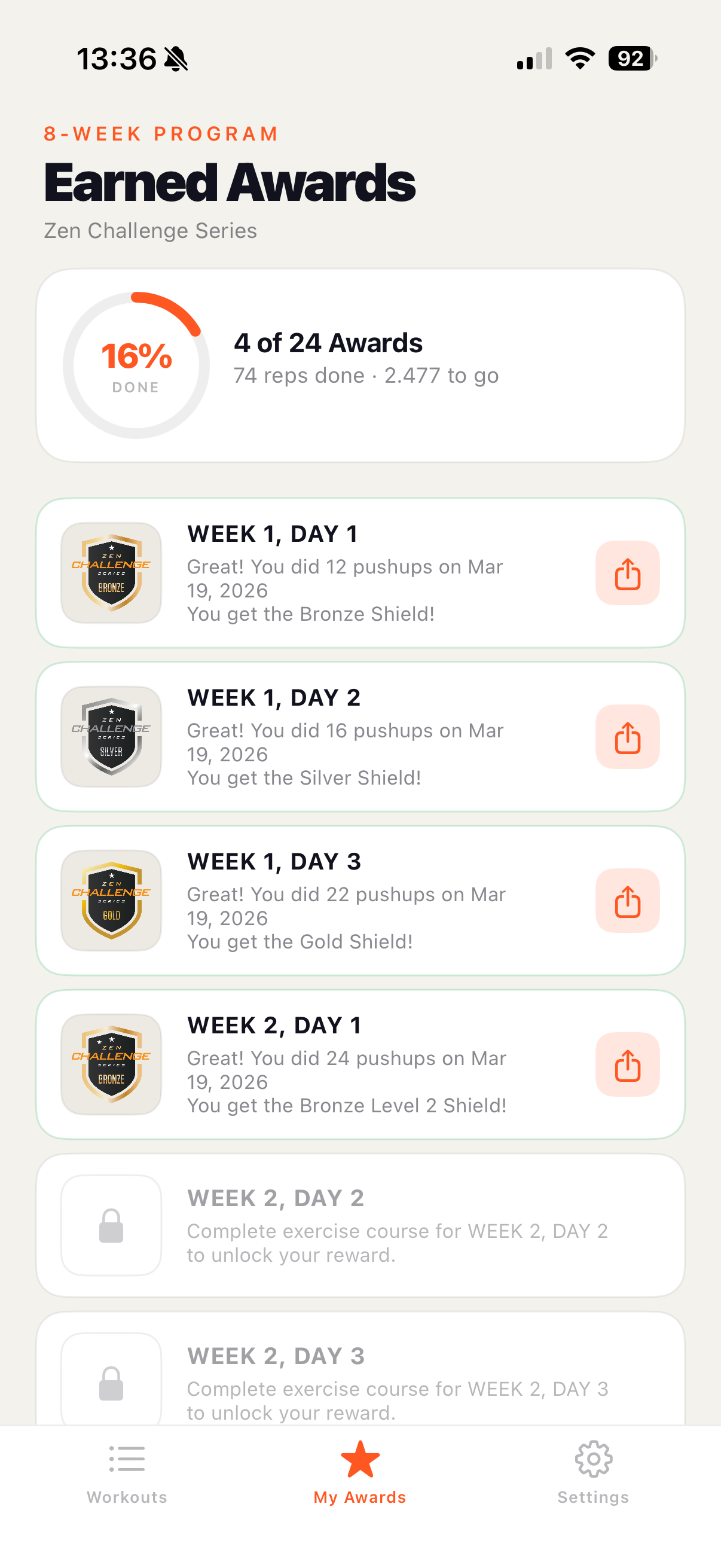
The awards history is where users revisit their journey. The redesigned screen transforms a basic table into a sleek gallery that makes earned badges feel like trophies worth showing off.
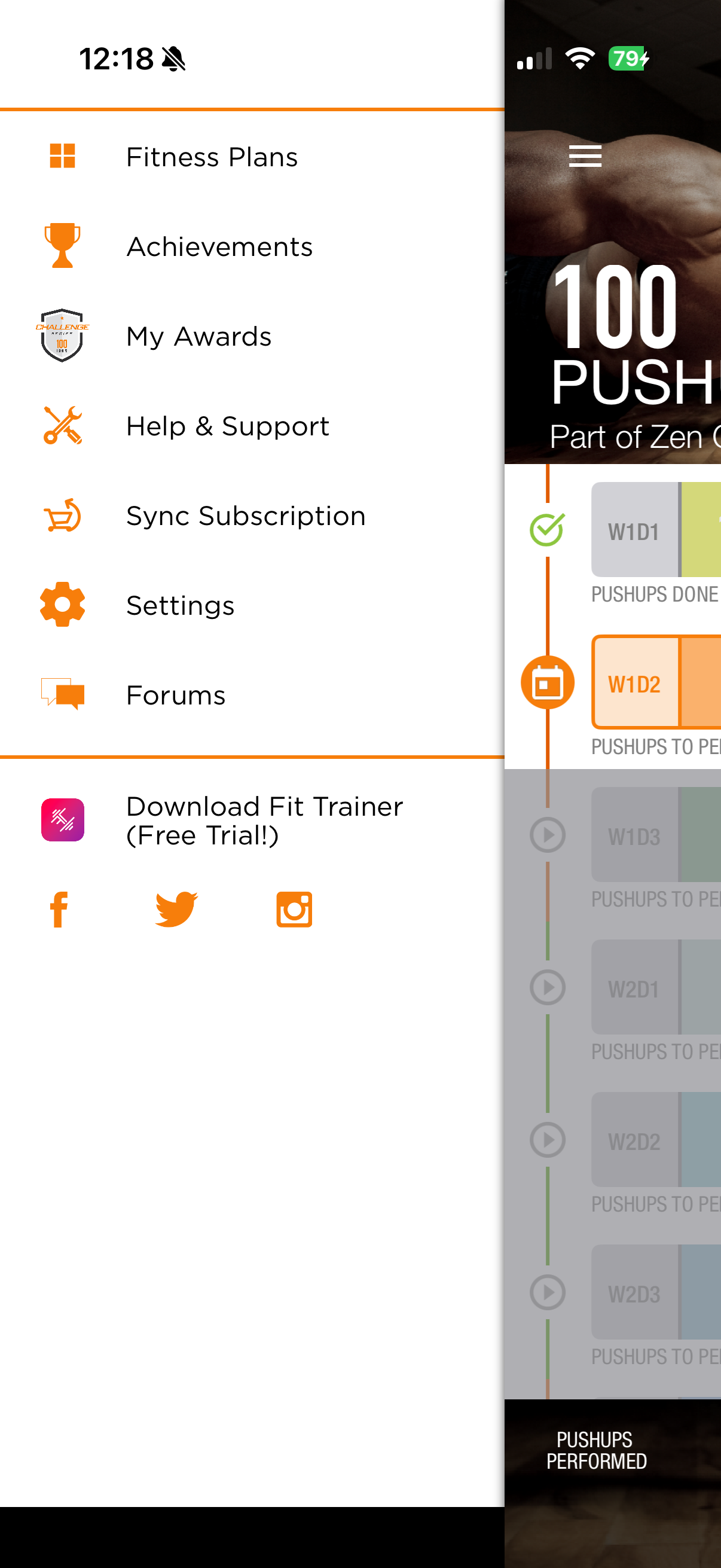
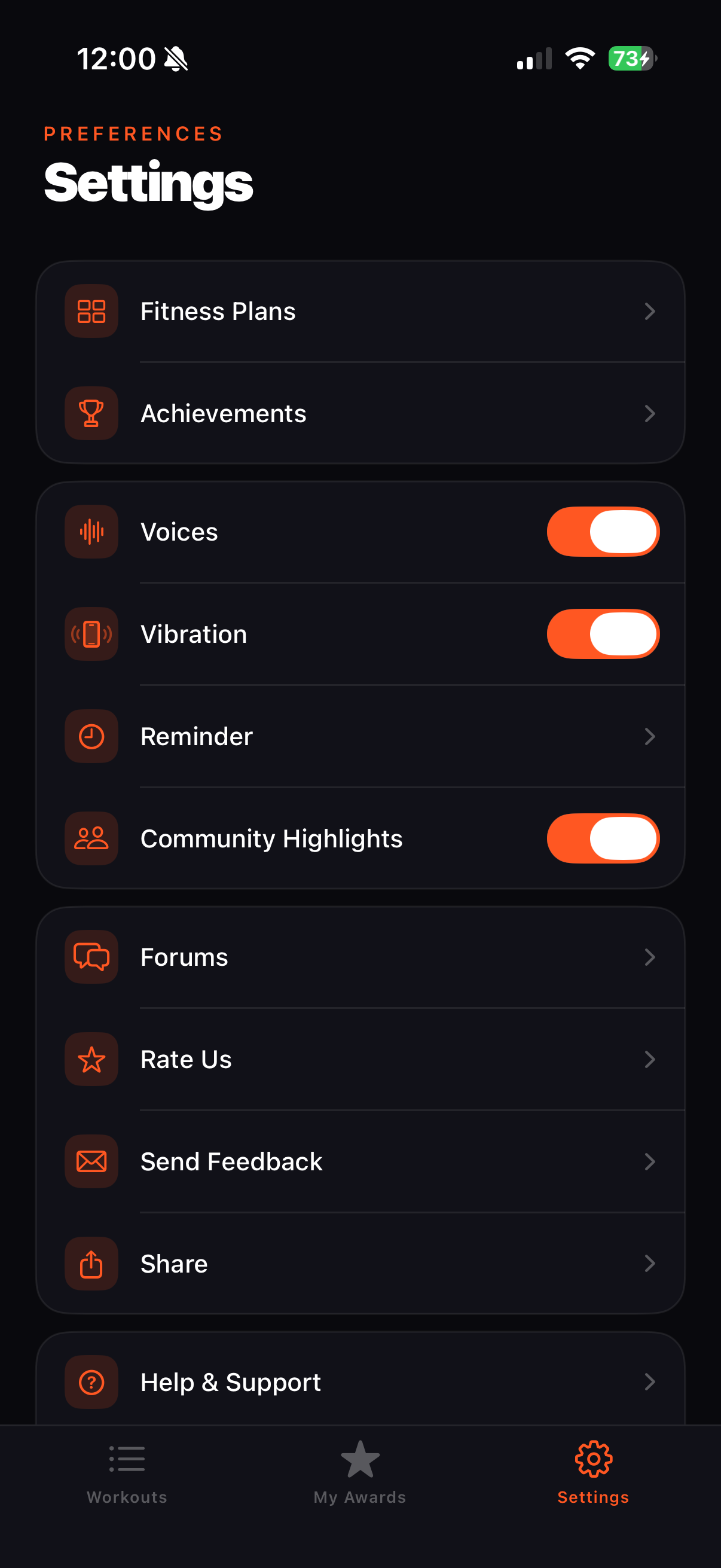
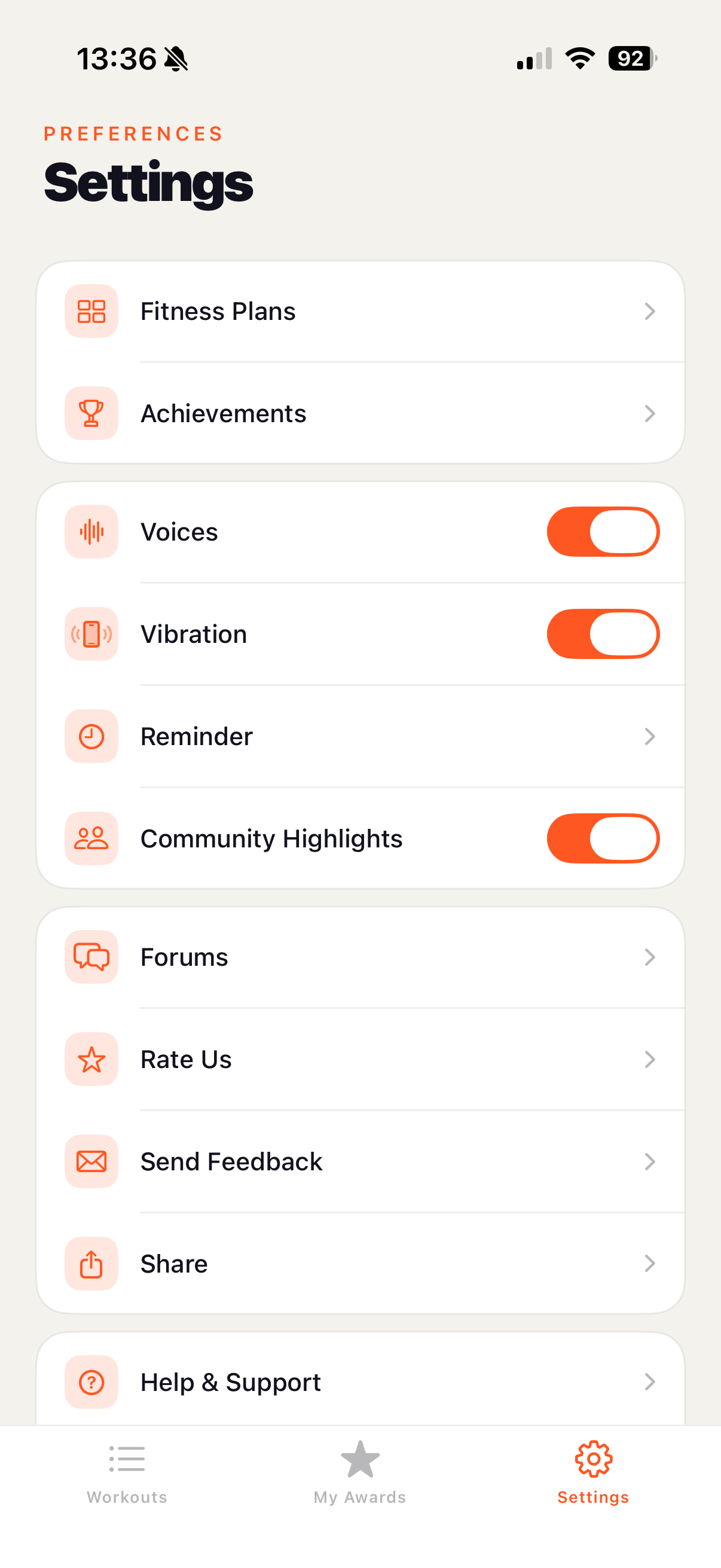
The old settings lived in a side-drawer that slid in from the left — a UIKit pattern that iOS has largely moved away from. The new settings is a dedicated, scrollable screen that fits naturally in the tab bar and uses grouping and iconography to aid scanning.
A concise summary of the key differences across every dimension of the user experience.
| Area | Before (UIKit) | After (SwiftUI) |
|---|---|---|
| Framework | UIKit + Storyboards | SwiftUI (iOS 16+) |
| Colour scheme | Light mode only | Dark-first, full light/dark mode |
| Navigation | Hidden side drawer | Persistent tab bar |
| Workout UI | Scrollable list of sets | Immersive full-screen per phase |
| Timers | Small bar at the top of list | Full-screen animated circular ring |
| Rep counting | Manual tap only | ✓ Manual + Auto camera detection |
| Completion screen | White background, plain text | Confetti animation, cinematic award reveal |
| Progress visibility | Counters at bottom of screen | Progress ring, weekly schedule, top bar |
| Typography | Standard system size | Black weight SF Pro, large display sizing |
| Accessibility | Small tap targets | Full-width CTAs, large interactive areas |
Every feature and workout program from the original app is preserved, now running on a clean, maintainable SwiftUI architecture — with room to grow.
Every design decision in this redesign was made with one goal: reduce friction so the user can focus on working out, not on figuring out the app.